1
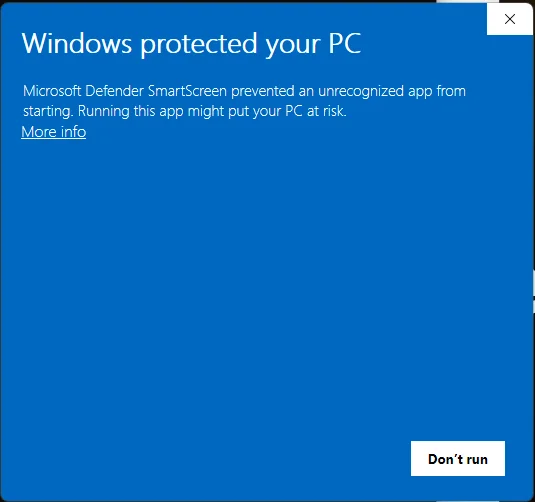
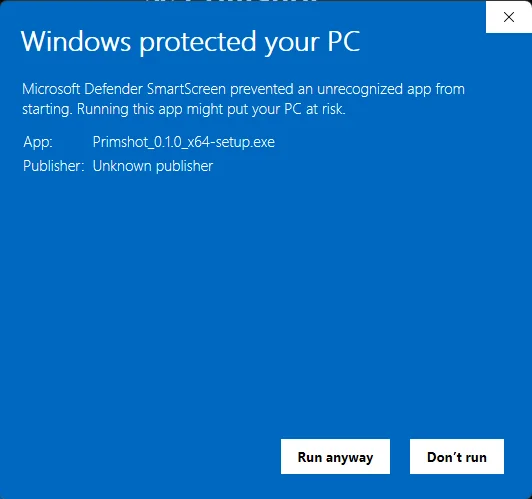
If Windows shows “Windows protected your PC”
This may appear when launching the installer for the first time.
- Click More info.
- Confirm the app name is Primshot_0.2.0_x64-setup.exe.
- Click Run anyway.
 Primshot
Installation help
Primshot is currently distributed directly from primshot.com. Because it is a new app and not yet digitally signed, Windows may show security warnings before installation.
If you downloaded Primshot from primshot.com, the steps below will guide you through the installation.
Available now
Primshot_0.2.0_x64-setup.exeThis may appear when launching the installer for the first time.
Some Windows systems may also show a warning about installing apps from outside the Microsoft Store.
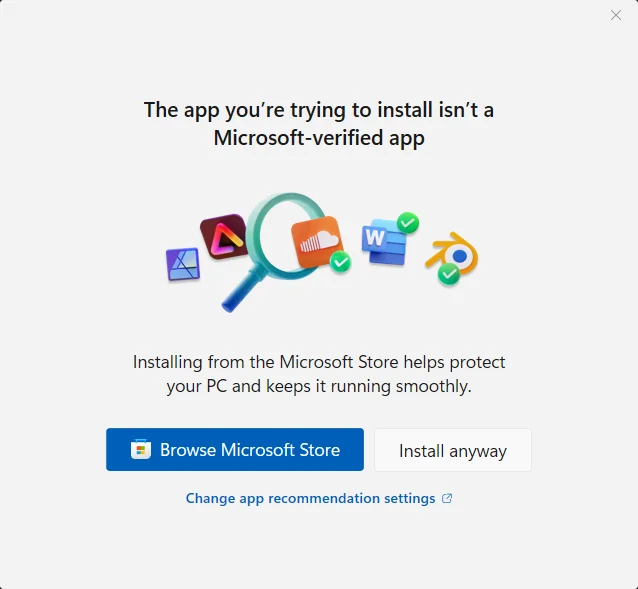
Only continue if:
If you received the installer from somewhere else, discard it and download a fresh copy from the official website.